• Home
      • Back
      • Client Testimonials
  • Instant Quote
      • Back
      • Soft Cover Unbound Proof Copy
      • Hardcover Unbound Proof
      • Budget Paperback Calculator
      • Premium Softcover Calculator
      • Hardcover Calculator
      • Hardcover Wire Bound Calculator
      • Saddle Stitched Booklet Calculator
      • Zine Booklet Calculator
      • Wire, Coil and Comb Calculator
  • Design Services
      • Back
      • Book & Cover Design Services
      • Order Design Services online
      • Simple Cover Design Tool
          • Back
          • Cover Tool Help
  • Author Resources
      • Back
      • Author Resources Hub
      • Book Sizes
      • Book Margins
      • Book Fonts
      • Image quality
      • Acceptable File Formats for print
      • How to get an ISBN
      • Imprint page information
      • Word Templates
      • How Many Books Should You Print?
      • Book Binding & Materials
          • Back
          • Book Binding Options Available
          • Perfect Binding
          • Hardcover Binding
          • Saddle stitching
          • Wire Binding / Coil Binding
          • Best Paper Types for Your Books
  • File Setup & Calculators
      • Back
      • Spine Width Calculator Perfect Binding
      • Spine Width Calculator Hard Cover Binding
      • Book Margins Calculator
      • Bleed and Trim Calculator for Word
      • Word Cover Calculator - Perfect Binding
      • Word Cover Calculator - Hard Cover Binding
      • How to create a Book Cover in Indesign
      • How to Create a Book Cover in Word
      • Internal Pages Bleed and Trim
  • File upload
  • Account
      • Back
      • Register
      • Login
      • Log Out
      • Password Reset
  • Cart
  • Contact Us

Free Book Templates in Microsoft Word

Get your manuscript into a professional layout—fast. Our free Microsoft Word book templates come pre-set with the right trim sizes, margins, gutters, and styles, so your file is ready for smooth printing and fewer proof rounds.

Check margins & gutter
On this page: Why use our Word templates What’s included Quick start File prep tips Popular trim sizes Common questions Resources

Why Use Our Word Templates

  • Correct margins & gutters for perfect binding and clean trim
  • Real book sizes (e.g., 5″×8″, 5.5″×8.5″, 6″×9″, A5) pre-configured
  • Heading/body text styles set for consistency and easy updates
  • Pagination & sections ready for front matter, chapters, and back matter
  • Printer-friendly defaults to reduce rework and keep costs down

What’s Included

  • Template files for popular trade sizes (paperback & hardcover interiors)
  • Sample chapter pages, title page, copyright page, and TOC style
  • Paragraph and character styles (body, headings, captions, quotes)
  • Guidance notes inside the template for quick orientation

How to Use the Templates (Quick Start)

  1. Download the template that matches your chosen trim size.
  2. Paste your manuscript (Paste and Keep Text Only to inherit styles).
  3. Insert high-resolution images (300 dpi at final size).
  4. Export to PDF/X with fonts embedded and 3 mm bleed if images touch the edge.
  5. Upload your interior PDF and separate cover spread to get a print quote.

Need help with the cover? See How to create a cover in Word or use our Word cover calculator.

File Prep Tips (Save Time & Reprints)

  • Use our Book Fonts guide to choose readable faces and set line spacing.
  • Check safe areas with the Book Margins Calculator.
  • Pick a suitable stock via Paper Types (uncoated for novels, coated for image-heavy).
  • Keep body text 100% K; reserve rich black for large solids.
  • Name files clearly: Title_Author_INTERIOR_v1.pdf, Title_Author_COVER_v1.pdf

Popular Trim Sizes Covered

Trim size Metric Typical use
5″×8″ 127×203 mm Compact fiction & memoir
5.5″×8.5″ 140×216 mm Versatile trade
6″×9″ 152×229 mm Non-fiction, manuals
A5 148×210 mm Handbooks, chapbooks

Common Questions

Can I customise styles and spacing?
Yes—update the master styles once and the whole document follows.

Do you provide templates for photo-heavy books?
Use the same templates, but confirm image placement and allow extra bleed; consider coated stocks.

Will these templates work on Mac and Windows?
Yes—built for Word on both platforms. Just check font availability or embed fonts in the PDF.

Do I need different templates for hardcover vs paperback?
Interiors are usually the same size; your cover file differs. Ask us for a cover size guide based on page count and paper stock.

Next Steps

  • Download the Word template for your trim size
  • Format your manuscript with the built-in styles
  • Export print-ready PDFs and request a tiered quote (100/250/500/1000)
  • Order a proof, then schedule your launch or preorders

Resources:
Book Margins Calculator: /file-setup-calculators/book-margins-calculator
Paper Types: /author-resources/book-binding-materials/paper-types
Book Fonts: /author-resources/book-fonts
Budget Paperback Calculator: /instant-quotation/budget-paperbacks
Premium Paperback Calculator: /instant-quotation/perfect-bound-books

Image Quality and Graphics Placement (Microsoft Word)

Images and graphics are vital for books with illustrations, photos, charts, or diagrams. Proper placement keeps pages readable and professional. This guide shows how to insert, wrap, anchor, and group images in Microsoft Word so layouts stay consistent as you edit.

Placing images and graphics

  1. Insert the image — Place your cursor, then go to Insert → Pictures and choose This Device… (or another source).
  2. Adjust size — Select the image and drag a corner handle to resize proportionally (avoid side handles to prevent distortion). For print, use 300 dpi recommended (200 dpi minimum) at final size.

Setting up image wrapping

Wrapping controls how text flows around an image. Select the image and click the Layout Options icon to choose:

  • In Line with Text — Treats the image like a text character. Easiest for simple documents.
  • Square — Text wraps evenly on all sides.
  • Tight — Text hugs the image’s outline (best for non-rectangular images).
  • Top and Bottom — Text appears above and below, not beside.
  • Behind Text / In Front of Text — Layers image with text; use carefully to avoid obscuring content.

Linking images to the relevant text (anchoring)

Anchoring keeps images attached to the right paragraph when content reflows.

  1. Right-click the image → Size and Position….
  2. Open the Position tab → check Lock anchor.
  3. Set horizontal/vertical alignment relative to Paragraph, Page, or Margin as needed.

Set relative positioning

For predictable movement, use relative alignment:

  1. In Size and Position…, use the Layout (or Text Wrapping) options.
  2. Align to Paragraph for figures that should travel with the text; align to Page/Margin for fixed placements.

Grouping images and captions

Keep captions attached to images so they move together during edits:

  1. Select the image and its caption (use Ctrl/⌘+Click).
  2. Right-click → Group → Group.

Tips for maintaining image quality

  • Format: Use PNG or TIFF for graphics/line art; avoid JPEG for type/line art due to compression artefacts.
  • Resolution: 300 dpi recommended, 200 dpi minimum at final print size.
  • Consistency: Keep similar figures at the same size across chapters for a uniform look.

Best practices for placement

  • Balance the layout: Don’t overcrowd pages; balance text and visuals.
  • Margins & alignment: Keep images inside margins unless the design calls for full bleed (handled at prepress).
  • Spacing: Use paragraph spacing to maintain clear space between images and text.
  • Black-and-white books: Convert images to greyscale to avoid colour shifts and extra cost.
Pro tip: For long documents, use Word’s References → Insert Caption with figure numbering and cross-references. It keeps callouts accurate as pages reflow.

How to Create a Book Cover in Microsoft Word 


Final Word cover example after trimming
Finished cover created in Word.

Here at the Book Printing Company, we understand that many people have limited financial resources, and this is why we have provided this step by step process for creating a cover in word to assist authors in getting their books published. Please see steps below:

Setting up a simple cover in word is possible, however, there are limitations.

As with the internal pages, extra space needs to be added to ensure that you cover design gives you the look that you invision.

Now lets start with the basics. To make this simple we will use an A4 book size with a spine width of 20mm. This example is based on a Perfect Bound book with 3mm bleed and trim.

A cover spread is not possible in word unless you have a great deal of experience in the program, please do not use Microsoft Publisher to create your cover.

You will need three separate documents to create your cover and a printing company who is prepared to lay it out correctly when you're finished. The first is your front Cover, the second is your back Cover and the third is your spine.

The Book Printing Company can layout your cover, however, we do charge a small fee. For Book Printing Company clients, the fee is $50.00 plus gst and for Non Book Printing Company clients, it is $75.0 plus gst. You must inform the printing company that your individual pages have 23mm bleed on all sides.

On this page: Front cover (A4 + 23 mm allowance) Back cover Spine setup Compiled cover example

Your Front Cover — Perfect Bound

Step 1. If your book size is 210mm wide and 297mm high you will need to create a word document that 23mm larger on all 4 sides. Therefore, your page size will be 256mm wide and 343mm high.

The extra 23mm on all 4 sides will allow for the bleed and trim. Usually only 3mm is required for a perfect bound book, however, if you want to use a background colour or image, you will need the additional 20mm space so that word doesn’t give you a fix margins error.

A4 page with extra 23 mm all sides to allow for bleed and Word margins
Page with 23 mm allowance (256 × 343 mm).

Step 2. Setting up your page margins to protect your content. As we stated above, the 23mm on all sides will be cut off, so we need to adjust your document or page margins during this process to achieve the best result. The first adjustment will to set your page margins at 20mm on all sides. This will give you an working space of 216mm x 303mm.

A4 page with 23 mm allowance and 20 mm page margins highlighted
20 mm page margins (working area 216 × 303 mm).

Step 3. Now we can insert a background colour or an image. For the purposes of this example, we will place an image. It is the harder option to achieve. A cookbook might be fun.

Image fills working area 216 × 303 mm
Place an image to fill 216 × 303 mm.

Below is an example of the cover as it would look on your book after being trimmed.

Trimmed front cover preview
Front cover appearance after trim.

Step 4. Now we are getting somewhere. So, the next step is to add the text. To ensure that your text is placed in a safe area and doesn’t get cut off. Now is the time to increase all your margins from 20mm on all sides to 33mm on all sides. The reason for this is so that you can see where the safe zone is to place your text. If you place text too close to the edge of the page, it might get cut off.

Safe text zone shown by larger margins
Safe text zone with increased margins.

Pictured above are the adjusted margins in white so that you can see where to place your text.

Front cover design with example text in Word
Text added to the cover layout.

Text added above.

Finished front cover
Finished front cover.

Here is the finished cover. Okay so its needs a bit of work in the design department, however, you get the gist of it.

Your Back Cover

Designing the back cover is the same simple process as the front cover. I have repeated the steps above and used a black background instead of an image.

Back cover created in Word with black background
Back cover example.

Your Spine

Now for the spine. The spine setup is a bit different to the covers. The first major difference is that your page will be landscape.

So, let’s go back to the initial measurements. We used a 20mm spine as the example. You will need an accurate spine measurement from the Book Printing Company that you are using. A spine width for a case bound book is larger than a perfect bound book. We have supplied a calculator below to give you the spine width measurements for our paper stocks below.

Step 1. Create a custom page 343mm wide this time and 66mm high (23mm x 2 +20mm for the spine width with 23mm margins.

Step 2. Add your background colour as before. Now you need to increase your margins by an additional 3 – 4mm on all sides. This will leave you with an area to place your text. Because the binding and printing process is subject to slight movement, it requires additional space between the edge of the spine and the text for the best result.

Spine layout example with additional margins for text safety
Spine example ready for use.

Tip: for spine measurements, use our calculators: Perfect binding spine width and Case binding spine width.

Compiled cover example

Now you have completed the components. To give you an example of how the cover would look when it is compiled, please see below.

Compiled front, spine and back cover example
Compiled cover preview.

How to Create a Book Cover in Adobe InDesign 

Your cover is an important aspect of your marketing strategy — it’s the first thing people see. However, we understand that finances can be limited, or that not all books require professional cover design. The steps below outline the creation of a basic cover in Adobe InDesign.

Overview

Adobe InDesign is a powerful application used to create professional-quality layouts for print and digital media. In this article, we provide a step-by-step guide on how to set up a cover in InDesign for an A4 book with a 10 mm spine and 3 mm bleed.

On this page: Document setup (A4 + spine + bleed) Place a photo Add a colour background Add guides Add a text box Export a print PDF

For reference: an A4 book is 210 mm wide and 297 mm high. The cover width calculation is 210 × 2 plus the 10 mm spine = 430 mm wide. The cover height is 297 mm.

Document setup in InDesign (A4 cover with 10 mm spine and 3 mm bleed)

Open InDesign and set up the document as follows:

  1. Open InDesign and select "New Document" from the "File" menu.
  2. In the "New Document" dialogue box, select the tab "Print".
  3. Set the width to 430mm and the Height to 297mm
  4. For a cover which is only printed on one side, choose 1 page and make sure the facing pages box is un-ticked
  5. Set the Columns to 2 and the gutter to 10mm (Spine)
  6. Set your Margins to 10mm
  7. Set your bleed to 3mm on all 4 sides
  8. Click on Create

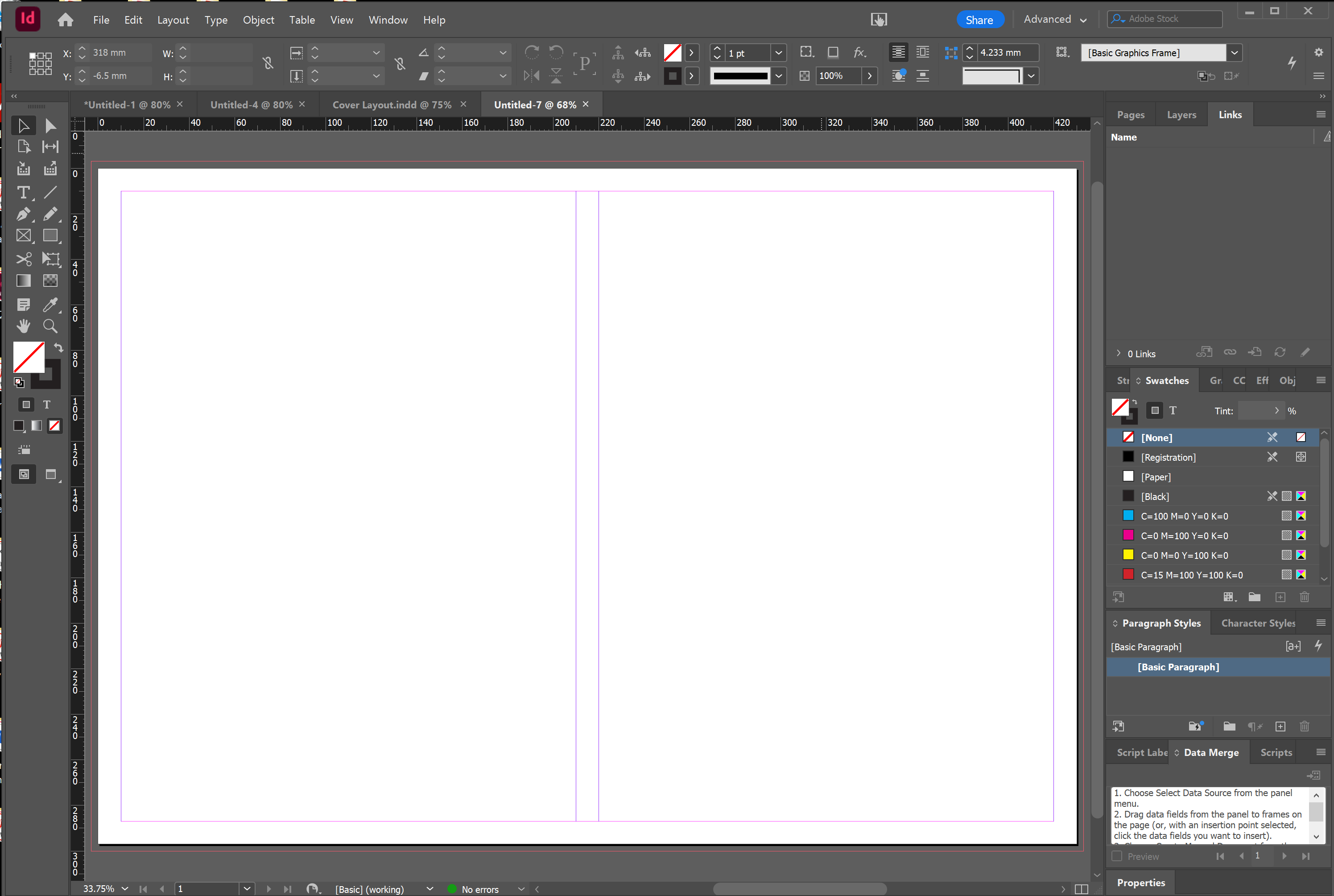
You will now see a blank document with 2 panels of 210mm and a 10mm spine in the centre. You should also see a coloured line outside of the page area. This is the bleed marker.

InDesign cover document showing two A4 panels with a 10 mm spine and 3 mm bleed
Document setup with panels, spine, margins and bleed visible.
InDesign document panels view with guides for spine and trim
Spine gutter and panel layout.

Placing a photo in InDesign

Placing a photo in InDesign is a simple process. Follow the steps below to add a photo to your InDesign layout:

  1. Open your InDesign document and select the page where you want to add the photo.
  2. Select the "Rectangle Frame Tool" from the toolbar on the left side of the screen. Click and drag on the page to create a frame for your photo.
  3. With the frame selected, go to "File" and select "Place" (or use the shortcut Ctrl + D on Windows, or Command + D on Mac).
  4. Navigate to the location where your photo is saved and select it.
  5. Click "Open" to place the photo into the frame. You can adjust the size of the photo by selecting the frame and right click, choose the "fitting" tool and choose the option that best suits. The frame fitting options will enable you to position the image in small exact increments.
  6. To reposition the photo within the frame, select the "Selection Tool" from the toolbar and click and drag the photo to the desired location within the frame.
  7. To crop the photo within the frame, select the "Direct Selection Tool" from the toolbar and click on the photo. You can then drag the anchor points on the frame to crop the photo.
  8. If you want the image to be at the back of the document, right click and choose arrange. This will enable you to send the image to the back.
  9. Once you're satisfied with the placement and appearance of the photo, save your InDesign document.

By following these steps, you can easily add photos to your InDesign layout and create visually engaging designs.

Placing and fitting a photo within an InDesign frame on the cover
Image frame with fitting and alignment.

Adding a colour background

Adding a color background to an Adobe InDesign document is a simple process. Follow the steps below to add a color background to your InDesign document:

Open your InDesign document and select the page or spread where you want to add the color background.

  1. Select the "Rectangle Frame Tool" from the toolbar on the left side of the screen. Click and drag on the page to create a frame for your color background.
  2. With the frame selected, go to the "Swatches" panel on the right side of the screen. If you don't see the Swatches panel, go to "Window" and select "Swatches" to open it.
  3. In the Swatches panel, click on the "New Color Swatch" icon at the bottom of the panel.
  4. In the "New Swatch" dialog box, select the color you want for your background. You can choose from the pre-defined colors or create a custom color by adjusting the sliders in the Color Picker.
  5. Once you've chosen your color, give the swatch a name and click "Add" to add it to the Swatches panel.
  6. With the color swatch selected in the Swatches panel, click and drag the swatch onto the rectangle frame that you created in Step 2.
  7. The color will be applied to the rectangle frame, creating a color background for your page or spread.
  8. If you want to match a color from the image on the cover, you can use the eyedropper tool. Just place the eyedropper tool over the color you would like to match and click. The color will appear the the fill box in the tools menu. Double click of the fill box and make adjustments until it suits and then click add to swatch.
  9. To adjust the opacity or other properties of the color background, select the rectangle frame and use the "Effects" panel to make any necessary adjustments. If you want the background color to be at the back of the document, right click and choose arrange. This will enable you to send the color background to the back.

By following these steps, you can easily add a color background to your InDesign document and create a visually engaging design.

Applying a colour background using Swatches in InDesign
Background colour applied across the full cover spread.

Adding guides

Adding guides to an Adobe InDesign document is a simple process. Follow the steps below to add guides to your InDesign document:

Open your InDesign document and select the page where you want to add the guides. Guides are useful to center content such as text boxes for headings. To find the center of the back and front cover you can use the same rectangle tool you used for the image. When placing the rectangle, do not include the 3mm bleed area outside of the sheet. Remember the 3mm bleed will be cut off in the binding process. So your rectangle in this case should be 210mm wide and 297mm high.

  1. Select the "Ruler" from the top of the screen. If you don't see the ruler, go to "View" and select "Show Rulers" to display it.
  2. Click and drag from the top ruler to create a horizontal guide. You can position the guide anywhere on the page. As you drag the guide, the coordinates will be displayed in the Control panel at the top of the screen.
  3. To create a vertical guide, click and drag from the left ruler. You can position the guide anywhere on the page.
  4. To create multiple guides, simply repeat the steps above.
  5. To remove a guide, select the "Selection Tool" from the toolbar and click on the guide. You can then press the "Delete" key on your keyboard to remove it.
  6. To adjust the position of a guide, select the "Selection Tool" and click and drag the guide to the desired location.
  7. To snap objects to a guide, go to "View" and select "Grids & Guides." Make sure "Snap to Guides" is checked. When you move an object close to a guide, it will automatically snap to the guide.

By following these steps, you can easily add guides to your InDesign document and use them to align objects and create a visually engaging design. InDesign's powerful layout tools, including guides and grids, allow you to create precise and professional designs for your print or digital media.

Using rulers and draggable guides in InDesign to align cover elements
Horizontal and vertical guides for precise alignment.

Adding a text box

Adding a text box to an Adobe InDesign document is a simple process. Follow the steps below to add a text box to your InDesign document:

Open your InDesign document and select the page or spread where you want to add the text box.

  1. Select the "Type Tool" from the toolbar on the left side of the screen. The Type Tool icon looks like a capital "T."
  2. Click and drag on the page to create a text box. The size of the text box will depend on the amount of text you want to add and the design of your document.
  3. Once you've created the text box, you can start typing your text. The text will automatically wrap within the text box.
  4. To adjust the size or position of the text box, select the "Selection Tool" from the toolbar and click on the text box. You can then drag any of the handles on the corners of the text box to resize it. You can also click and drag the text box to reposition it on the page.
  5. To add formatting to your text, select the text that you want to format and use the options in the "Character" and "Paragraph" panels on the right side of the screen. You can change the font, size, color, alignment, and other properties of your text.
  6. To add more text to your document, simply create another text box and repeat the steps above.

By following these steps, you can easily add a text box to your InDesign document and start typing your content. InDesign's powerful text tools allow you to format your text and create a visually engaging design for your document.

Creating and formatting a text box on the InDesign cover spread
Type tool and text frame controls.

Exporting a print-ready PDF

Exporting a PDF from an Adobe InDesign document is a simple process. Follow the steps below to export a PDF from your InDesign document:

  1. Open your InDesign document and go to "File" and select "Export."
  2. In the "Export" dialog box, select "Adobe Press Quality" from the "Format" dropdown menu.
  3. Choose a location to save your PDF file by navigating to the desired folder in the "Save in" field.
  4. Name your PDF file in the "Save as" field.
  5. In the "Export Adobe PDF" dialog box, select the desired settings for your PDF file. These settings include:
  6. Adobe PDF Preset: Choose Press quality for print.
  7. Pages: Choose pages
  8. Marks and Bleeds: Check the "Use Document Bleed Settings"
  9. Output: Choose the either GraCol, Fogra or uncoated FOGRA if you are using an uncoated paper for your book. Do not choose SWOP coated.
  10. Click "Export" to generate your PDF file. This may take a few moments depending on the size of your document.
  11. Once your PDF file is generated, you can open it in any PDF viewer to preview and check the file before sending it for printing or sharing it with others.

By following these steps, you can easily export a PDF from your InDesign document and create a high-quality file that is suitable for printing or sharing online. Please note the 3 mm bleed and trim marks on the sample below. If the bleed and trim are set up correctly, the image and background colors should go past the trim mark. The trim marks are the marks on the inside; the bleed marks are the outside marks.

Exported PDF cover sample showing bleed and trim marks
Press-ready PDF with bleed and trim visible.

Tip: for paperback/hardcover spine math, use our spine width (paperback) and spine width (hardcover) calculators.

Imprint Page Guide: What to Include in Your Book

An imprint page (also called a “copyright page”) lists key publication and legal details about a book. It helps libraries, booksellers, and readers identify the edition, rights, and publisher, and it records where and by whom the book was produced.

Essential items to include

  • Edition statement: Edition/printing number and publication date (e.g., “First edition, 2025”).
  • Copyright notice: © year + rights holder (e.g., “© 2025 Jane Smith”). Include “All rights reserved.”
  • Publisher details: Publisher name, address, website, and contact information.
  • ISBN: Your International Standard Book Number for the specific format.
  • Legal disclaimer: A short statement of liability/permissions to protect the publisher and author.
  • Printing history: Optional list of printings with dates (useful for collectability and version control).
  • Cataloguing data: If applicable, Library of Congress (US) or other cataloguing-in-publication data.
  • Manufacturing note: Country and printer (e.g., “Printed in Australia by The Book Printing Company”).
Tip: Keep the imprint concise, professional, and consistent across formats (paperback, hardcover, ebook). If you publish multiple formats, each should have its own ISBN.

Sample imprint page (Australia)

Use this as a starting point and replace placeholders with your details.

Example:

First edition, published in Australia in 2025 by
XYZ Publishing Pty Ltd
Suite 12, 123 Main Street, Melbourne VIC 3000, Australia
www.xyzpublishing.com.au

Copyright © 2025 by John Doe. All rights reserved. No part of this book may be reproduced in any form or by any means, electronic or mechanical, including photocopying, recording, or by any information storage and retrieval system, without written permission from the publisher/author.

ISBN: 978-0-999-99999-9

Printed in Australia by The Book Printing Company.

For cataloguing: Library and educational institutions should consult standard cataloguing services for subject headings and classification.

Optional printing history

10 9 8 7 6 5 4 3 2 1
First printing: March 2025

Disclaimer: This page is a general template and does not constitute legal advice. For specific legal or regulatory requirements (e.g., permissions, trademarks, CIP data), consult a qualified professional.

Where to place the imprint page

Traditionally it appears on the verso (back) of the title page near the start of the book. Keep formatting clean and consistent with your front matter styles.

Formatting tips

  • Use a readable serif body font at ~9–10.5 pt; keep line spacing comfortable.
  • Avoid hyphenation in URLs; make them short and stable.
  • Match regional spelling and legal norms (e.g., “Published in Australia”).
  1. ISBN
  2. How to Set Up Book Margins in Word: A Step-by-Step Guide
  3. The Ultimate Guide to preparing your manuscript for print
  4. Understanding Bleed and Trim in Printing: Design Tips for Perfect Artwork

Page 1 of 2

  • 1
  • 2
Indie Bookstore

Sell Your Book Online

Indie Bookstore helps independent authors list and sell their books online.

  • Free to join
  • No commission on book sales
  • Payments go directly to the author
Visit Indie Bookstore
© The Book Printing Company 2000 - 2026
Back to top
Head Office
Elizabeth Street
Montello
Tasmania 7320
e: admin@bookprintingcompany.com.au
Sales
Bells Road
Grose Vale
New South Wales 2753
e: sales@bookprintingcompany.com.au